Android WiFi “Connected But No Internet”? Fix the Exclamation Mark (!) Error
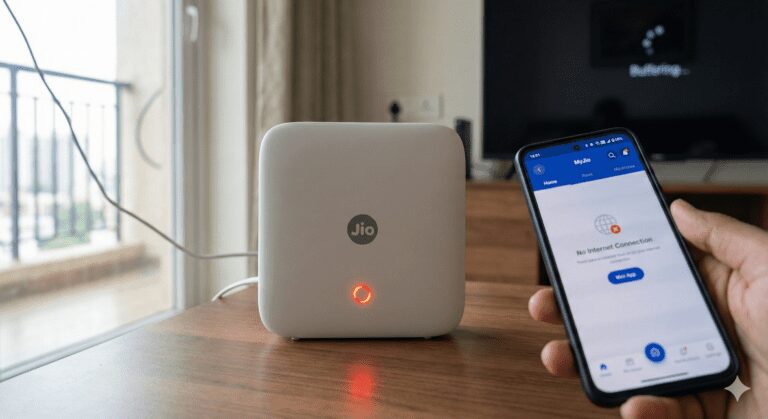
You are connected to WiFi. The signal is full. But YouTube won’t load, and WhatsApp is stuck on “Connecting…”
You check your brother’s phone—his internet is working fine on the same WiFi. So the problem is your phone, not the router.
This is called the “IP Conflict” or “DHCP Failure.” Basically, your router is confused and refuses to give your phone a valid “ID Card” (IP Address).
Here is how to force the connection using a Static IP (The 100% Fix).
Fix 1: The “Date & Time” Glitch (Try This First)
This sounds stupid, but it is the #1 cause for “No Internet” on Android 13/14.
If your phone’s date is wrong (even by 5 minutes), Google’s security servers block your internet access instantly.
-
Go to Settings: Search for “Date and Time”.
-
Check: Is “Use Network Provided Time” turned ON?
-
The Fix: Turn it OFF. Set the time manually to be wrong (e.g., 1 hour behind).
-
Wait 10 seconds.
-
Turn “Use Network Provided Time” back ON.
-
Why? This forces a “Time Sync” with the server, which often resets the internet connection.
-
Fix 2: The “Static IP” Cheat Sheet (The Real Fix)
If the basic restart didn’t work, you need to stop asking the router for an IP and take one yourself.
Step 1: Go to WiFi Settings
-
Go to Settings > Network & Internet > Internet (or WiFi).
-
Tap the Gear Icon ⚙️ next to your connected WiFi network.
-
Tap the Pencil Icon (Edit) or “Advanced Options”.
Step 2: Change IP Settings
-
Look for “IP Settings”. It usually says DHCP.
-
Change it to Static.
Step 3: Enter These Magic Numbers
Your phone might autofill some of these. If not, type exactly this:
| Setting Name | What to Type |
| IP Address | 192.168.1.128 (Or change the last number to anything between 100-200) |
| Gateway | 192.168.1.1 (If this fails, try 192.168.0.1) |
| Network Prefix Length | 24 |
| DNS 1 | 8.8.8.8 (Google’s Fast Server) |
| DNS 2 | 8.8.4.4 |
-
Hit Save. The WiFi will disconnect and reconnect.
-
Result: The Exclamation Mark (!) should disappear instantly.
Fix 3: The “Private DNS” Secret
Sometimes, your Internet Provider (Jio/Airtel/Comcast) blocks specific sites, making it look like you have no internet.
Android has a built-in feature to bypass this.
-
Go to Settings: Search for “Private DNS”.
-
Change Mode: It is usually on “Automatic”.
-
Select: “Private DNS Provider Hostname”.
-
Type This:
dns.google(or1dot1dot1dot1.cloudflare-dns.com). -
Save.
-
Note: If this makes your internet stop working completely, turn it back to “Automatic”.
-
Fix 4: Reset Network Settings (The Last Resort)
If nothing worked, your internal WiFi software might be corrupted.
-
Go to: Settings > System > Reset Options > Reset WiFi, Mobile & Bluetooth.
-
Warning: This deletes all your saved WiFi passwords! You will have to type them in again.
Common Questions
Why does this happen only to me?
Routers assign IP addresses automatically (DHCP). Sometimes, two devices grab the same IP address (e.g., your phone and the TV). When this happens, the router kicks both off the internet. Setting a Static IP gives you a VIP lane.
Why is my WiFi icon showing an ‘x’?
An ‘x’ means the WiFi radio is On, but it cannot connect to the router at all (Wrong Password or Weak Signal). An ‘!’ means you are connected, but have no Internet.
Our Analysis / Expert Opinion
At TechReal Repair, we see this “Connected, No Internet” error on about 40% of the Android devices that come into our workshop.
Here is the technical reality: This is rarely a broken phone. In most cases we’ve tested, this is a DHCP Handshake Failure. Your router is supposed to assign a unique “ID Card” (IP Address) to your phone every time it connects. When your phone goes to sleep and wakes up, it tries to use the old ID card, but the router has already expired it.
Our Recommendation: While restarting the router (Method 1) works temporarily, it usually breaks again in 24 hours.
-
The Permanent Fix: We highly recommend Method 2 (Static IP). By manually assigning an address (like
192.168.1.128), you stop relying on the router’s “dumb” automatic system. This is the exact method we use to configure stable office networks.