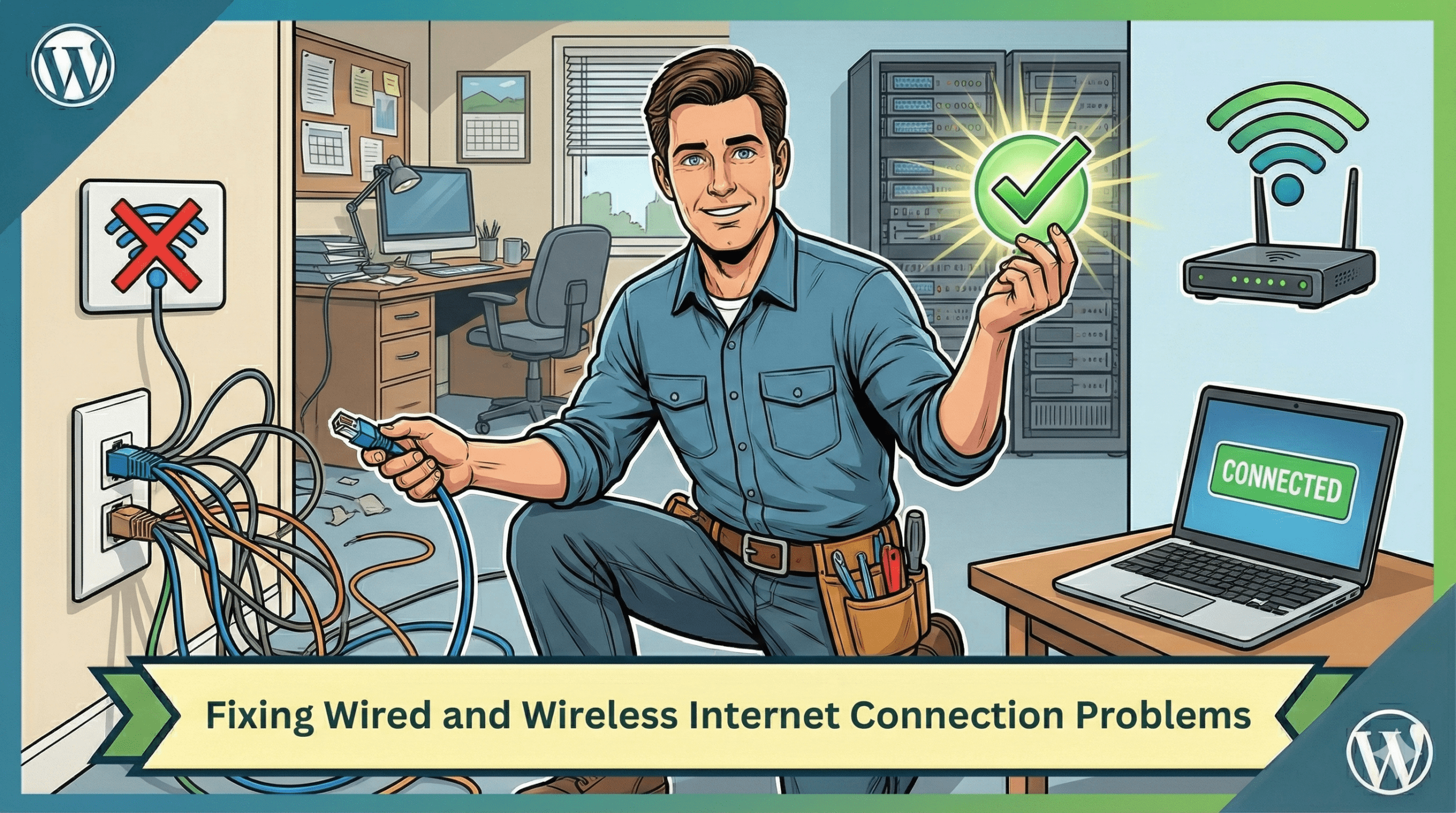
Fixing Wired and Wireless Internet Connection Problems
The Problem: No Internet After Reinstall
-
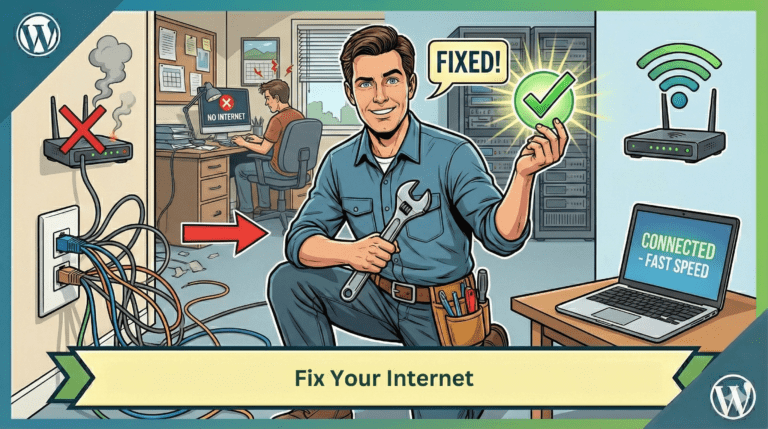
Symptoms: The computer cannot connect to the internet via Wi-Fi or a wired Ethernet cable.
-
Indicators:
-
A red “X” appears on the connection icon in the system tray, stating “Not connected – No connections available”.
-
In Device Manager, the “Ethernet Controller” and “Network Controller” both have yellow exclamation points, indicating missing drivers.
-
Step 1: Identify the Missing Drivers
-
Check Device Manager:
-
Go to Start > Computer (Right-click) > Properties.
-
Click on Device Manager in the top left corner.
-
Look for devices with yellow exclamation points under “Other devices” or “Network adapters.”
-
-
Get Model Info: Write down the exact model number from the sticker on the back of the computer (e.g., Acer Aspire 5336) to ensure you download the correct files.
Step 2: Download Drivers (Using a Second Computer)
-
The Catch-22: You need internet to get the drivers, but the computer has no internet. You must use a second computer and a flash drive.
-
Process:
-
Go to the manufacturer’s website (e.g., Acer Support).
-
Search for the specific model (e.g., Aspire 5336).
-
Select the correct operating system (e.g., Windows 7 64-bit).
-
Download the LAN (Local Area Network) driver for wired internet and the Wireless LAN driver for Wi-Fi.
-
Note: If multiple vendors are listed (e.g., Broadcom, Atheros), it is safer to download both if you aren’t sure which hardware you have .
-
Step 3: Transfer and Install
-
Transfer: Save the downloaded ZIP files to a flash drive and plug it into the broken computer.
-
Install LAN Driver:
-
Unzip the folder.
-
In Device Manager, right-click the “Ethernet Controller,” select Update Driver Software, and browse to the unzipped folder on the flash drive.
-
-
Install Wi-Fi Driver:
-
Run the “Setup.exe” file inside the downloaded wireless driver folder.
-
If the yellow exclamation point disappears during installation, the driver is working .
-
Step 4: Verification
-
Restart: Reboot the computer to finalize installation.
-
Check Device Manager: Ensure there are no more yellow exclamation points.
-
Test Connection: Open a web browser to test the wired connection, then check the system tray to see if wireless networks are now visible.