Jio AirFiber LED Lights Meaning: Red, Green & Blue Color Codes Explained
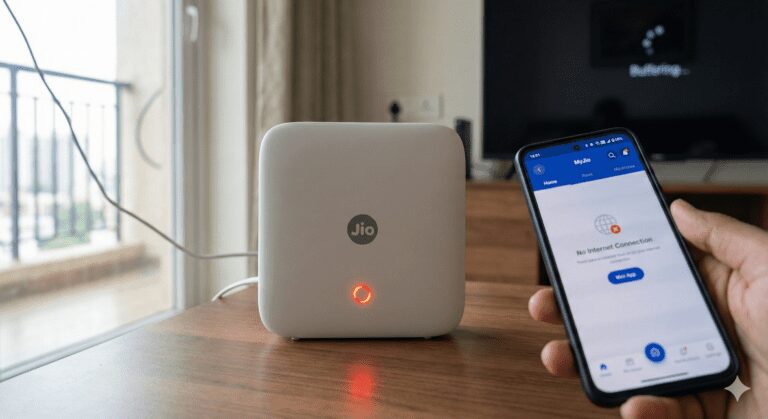
You just installed Jio AirFiber. You see a Green light, then it turns Blue, and sometimes it blinks Red.
What is your router trying to tell you?
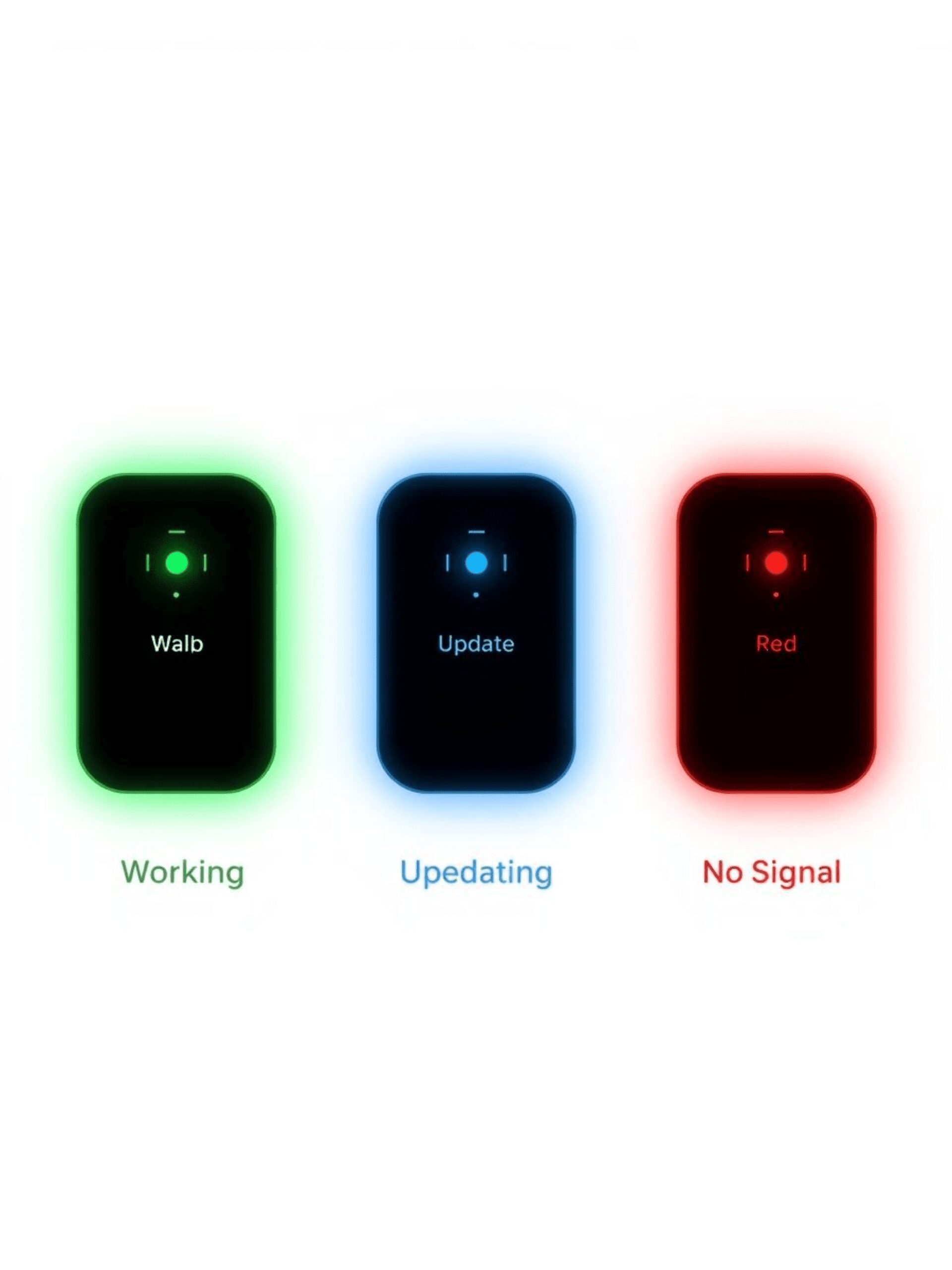
Unlike the old JioFiber routers which had many icons, the new Jio AirFiber (5G) box has a single LED ring that changes color to communicate its status.
Below is the complete Color Code Cheat Sheet to understand what your device is doing, and how to fix it if the light turns Red.
Jio AirFiber LED Color Code Table (The Cheat Sheet)
Save this table. It explains every possible status.
| LED Color | Light Behavior | What It Means | Action Required |
| 🟢 Green | Solid (Steady) | Online & Healthy | None. Your internet is working perfectly. |
| 🟢 Green | Blinking | Booting Up | Wait 2 minutes. The device is restarting. |
| 🔵 Blue | Solid (Steady) | Ready / Standby | It is connected to the Roof Unit (ODU) but waiting for an IP address. |
| 🔵 Blue | Blinking | Pairing / Updating | Do not turn off. It is downloading a Firmware Update. |
| 🔴 Red | Blinking (Slow) | Weak Signal | Internet works, but speed is low. Move the box closer to a window. |
| 🔴 Red | Blinking (Fast) | No Signal | Critical Error. It cannot find the Roof Unit. Check cables. |
| 🔴 Red | Solid (Steady) | Hardware Failure | The device has overheated or crashed. Needs a Hard Reset. |
Detailed Meanings & Fixes
1. The “Blinking Red” Light (Most Common Issue)
If your light is flashing Red fast, your Indoor Unit (IDU) has lost connection with the Outdoor Unit (ODU).
-
Cause: Loose cable, heavy rain blocking 5G signals, or the Outdoor Unit has lost power.
-
The Fix:
-
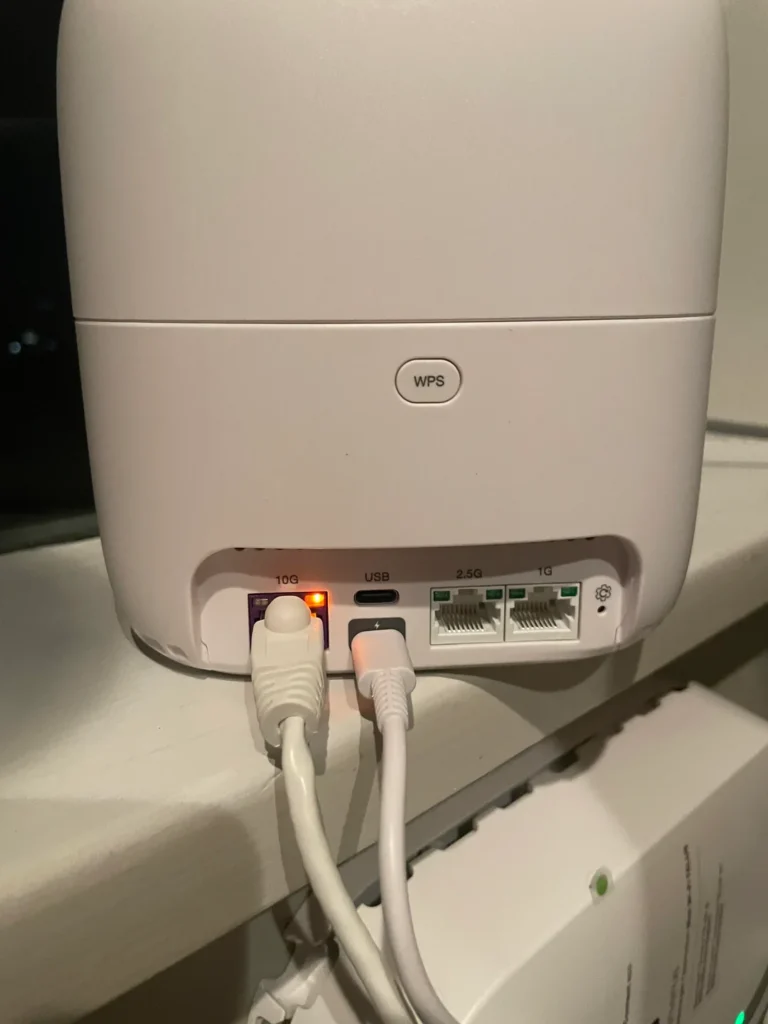
Check the POE Adapter (The power brick). Ensure the cable going to the roof is plugged into the port marked “To ODU” (Outdoor Unit).
-
Perform a Power Cycle: Turn off the switch, unplug for 5 minutes, and plug back in.
-
2. The “Solid Blue” Light (The Stuck Glitch)
Sometimes the light stays Solid Blue but you have no internet.
-
Meaning: The device is physically connected, but Jio’s server hasn’t assigned it an IP address yet.
-
The Fix: This is often a “Authentication Hang.”
-
Open the MyJio App.
-
Go to Fiber > Diagnostics.
-
Click “Re-Authenticate” or “Troubleshoot.”
-
3. The “Blinking Blue” Light (Do Not Touch)
If the light is Pulsing Blue (fading in and out), it is downloading a critical software update.
-
Warning: If you unplug the power during a Blue Blink, you might “brick” the router (corrupt the software). Wait at least 15 minutes before touching it.
How to “Hard Reset” the Light (If Stuck on Red)
If the light is Solid Red and won’t change even after a restart, you need a factory reset.
-
Locate the tiny Reset Hole on the back of the white box (near the LAN ports).
-
Use a SIM Ejector tool or paperclip.
-
Press and Hold for 10 seconds until the light flashes Purple or Off.
-
Release and wait 5 minutes for it to reboot.
Summary
-
Green = Good.
-
Blue = Wait.
-
Red = Fix it.
Our Analysis / Expert Opinion
At TechReal Repair, we have tested the Jio AirFiber (5G) units extensively, and they behave very differently from the traditional wired JioFiber routers.
The “Line-of-Sight” Reality: Unlike wired internet, the AirFiber unit is extremely sensitive to physical obstacles. If your LED light frequently switches between Green and Blinking Red, it is usually not a device fault. It is a “Signal Shadow.” We found that moving the Indoor Unit just 2 feet to the left or right (closer to the window facing the roof unit) often permanently fixes the stability issues.
Our Warning on Weather: During heavy Indian monsoons, you might see the light turn Red or Slow Blinking Blue. This is called “Rain Fade” (water droplets absorbing 5G waves).
-
Expert Advice: Do NOT reset the device during heavy rain. It will not fix the signal. Wait for the rain to slow down; the light usually turns Green automatically within 10 minutes.