Ola S1 Pro & S1 Air Screen Freeze? The “Emergency” Hard Reset Guide
You are at a traffic signal. Your Ola S1 Pro screen is stuck. The music won’t stop playing, or the scooter won’t turn off.
Don’t panic. You don’t need a mechanic. You just need to reboot the system, just like a frozen phone.
Most people don’t know the “Secret Key Combinations” to force a restart. Here is the complete Cheat Sheet for Ola S1 Pro (Gen 1 & Gen 2), S1 Air, and Ather 450X.
The “Emergency” Cheat Sheet (Save This Image)
Use this table when your screen is unresponsive.
| Scooter Model | The Reset Combination | How Long to Hold? |
| Ola S1 Pro (Gen 1) | Reverse Button + Power Button | Hold together for 10-15 seconds until the Ola logo appears. |
| Ola S1 Pro (Gen 2) | Reverse Button + Power Button | Hold together for 10 seconds. (Screen will go black, then restart). |
| Ola S1 Air | Reverse Button + Power Button | Hold together for 10 seconds. |
| Ather 450X / 450S | Both Brakes + Start Button | Hold all three for 10 seconds until the dashboard blinks. |
| TVS iQube | Ignition Key Cycle | Turn Key OFF -> Wait 30s -> Turn Key ON. (No button reset available). |
Step-by-Step: Performing the “Hard Reboot”
If the table above didn’t work, follow these exact steps for the Ola S1 series:
-
Safety First: Put the scooter on the Main Stand (Center Stand). Do not sit on it.
-
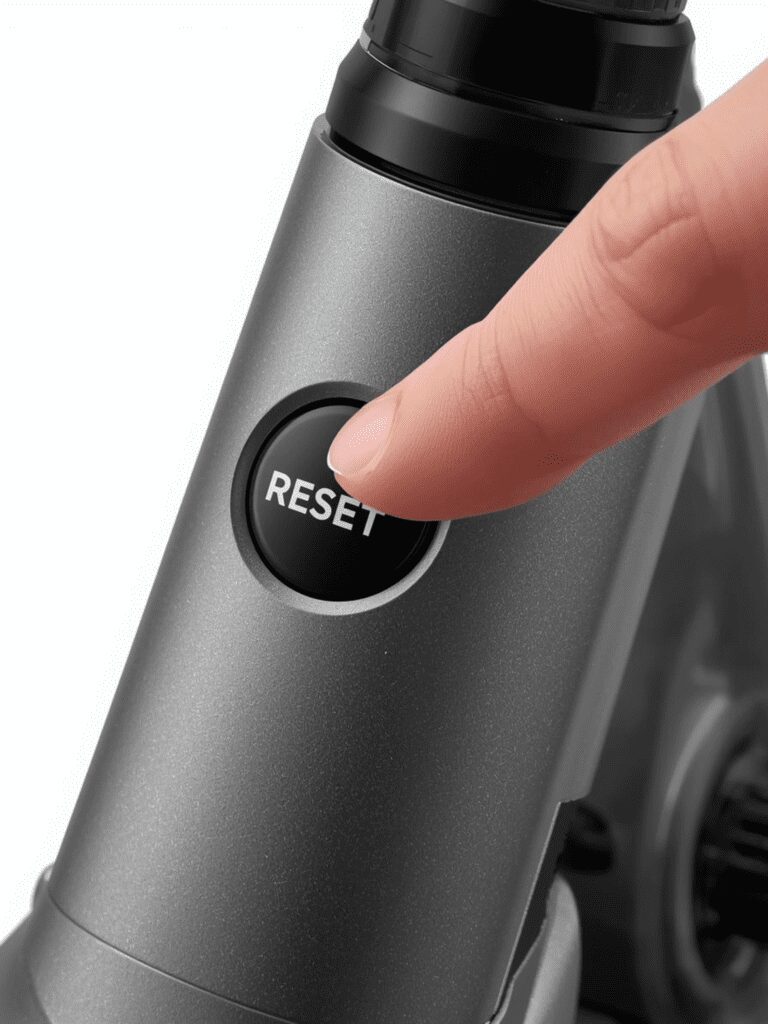
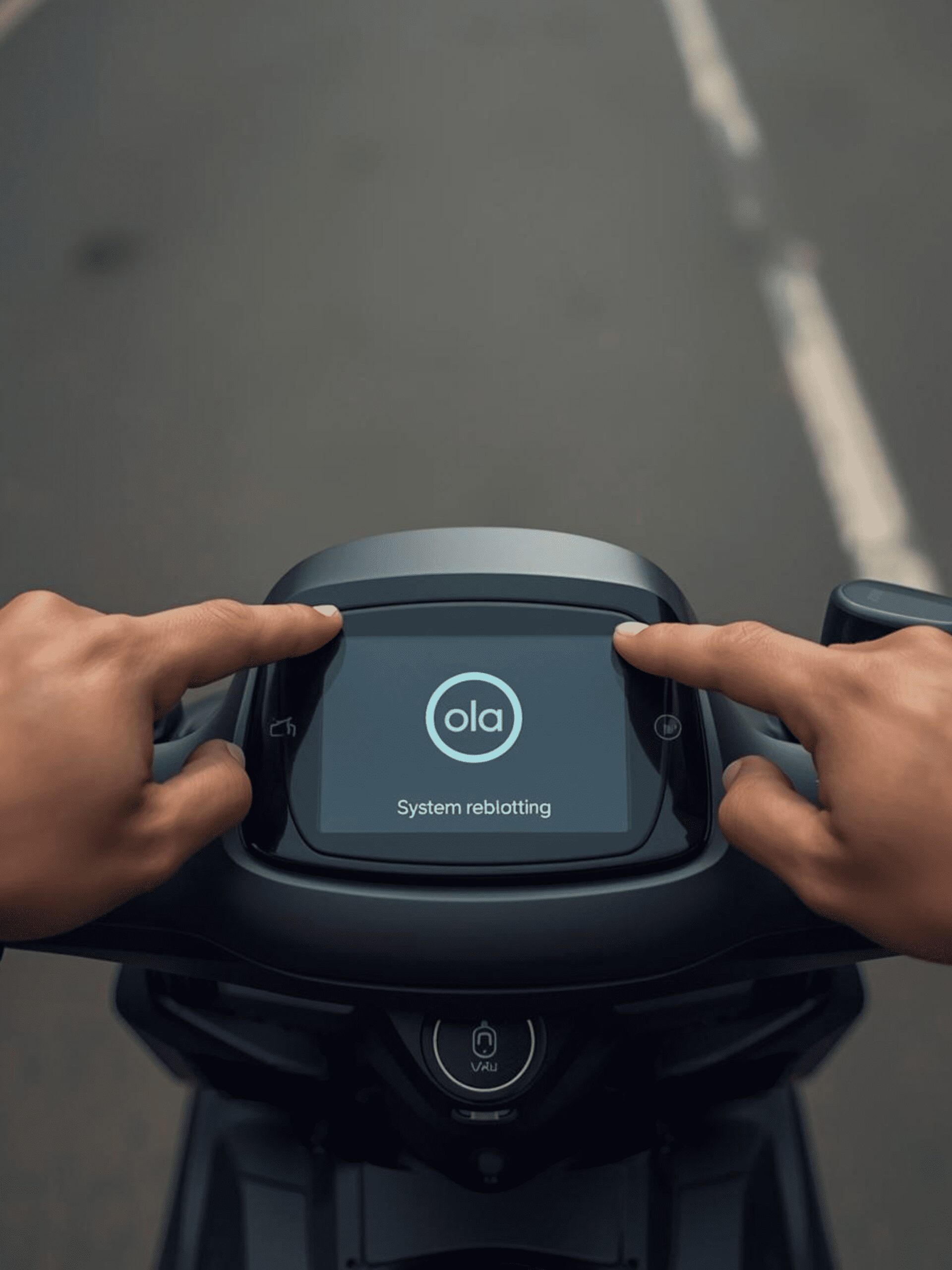
The “Claw” Grip: Use your left hand to press the Reverse button and your right hand to press the Power button simultaneously.
-
The Wait: Count to 15. The screen might flicker or the lights might flash. Do not let go until you see the “Ola” logo.
-
The PIN: Once it restarts, you will need to enter your 6-digit PIN.
Warning: Do not try this while riding! Only do this when stopped.
“My Trunk Won’t Open!” (The Emergency Latch)
If your screen is dead and your groceries are stuck inside the boot, you cannot use the touch screen to open it.
For Ola S1 Pro Gen 2 users:
There is a hidden “Emergency Latch” under the seat near the front hinge.
-
Look under the front curve of the seat (near your legs).
-
You may need to peel back a small rubber cover.
-
Pull the mechanical cable to pop the seat open manually.
Why Does This Happen? (Prevention)
Your scooter is basically a computer on wheels. It freezes because:
-
Overheating: You parked in direct sunlight in Indian summer (40°C+).
-
Software Glitch: You haven’t updated to MoveOS 4 (or latest version).
-
Prevention Tip: Always park in the shade. If you can’t, buy a silver Reflective Scooter Cover (Link to Amazon) to keep the dashboard cool.
This is a must-have addition. Ola S1 owners are often terrified when their screen goes black because they think the scooter is dead. Explaining that the “Motor is separate from the Screen” calms them down instantly.
Paste this block right after the Introduction (before the “How to Reset” steps).
Our Analysis / Expert Opinion
At TechReal Repair, the “Black Screen of Death” is the #1 software complaint we hear from Ola S1 Pro and S1 Air owners.
The “Headless Mode” Reality: Many riders panic when the screen dies at 60km/h, thinking the brakes or motor will stop. Relax. The scooter’s Drive Train (Motor/Brakes) runs on a completely separate ECU from the Infotainment Screen (Android).
-
The Truth: Even if the screen freezes or goes black, your throttle, brakes, and indicators will usually still work. You can safely ride the scooter to the side of the road to perform a reset.
The “Eco Mode” Glitch: We have noticed this freeze happens most often when switching rapidly between Hyper Mode and Eco Mode while riding. The sudden change in voltage and software processing seems to overwhelm the 3GB RAM on older MoveOS 3 versions.
-
Our Recommendation: If you are on a long ride, try to stick to “Normal” mode to prevent overheating the display processor, which is a common cause of these glitches in Indian summers.
The “Two-Button” Trick: While the official manual says to hold the buttons for 10 seconds, in our experience with the Gen 2 models, you often need to hold the Reverse + Power buttons for a full 20-30 seconds until the Ola logo flickers. Don’t let go too early!