TP-Link Router Orange Light? How to Fix “No Internet” (The MAC Clone Trick)
You are connected to WiFi, but websites won’t load.
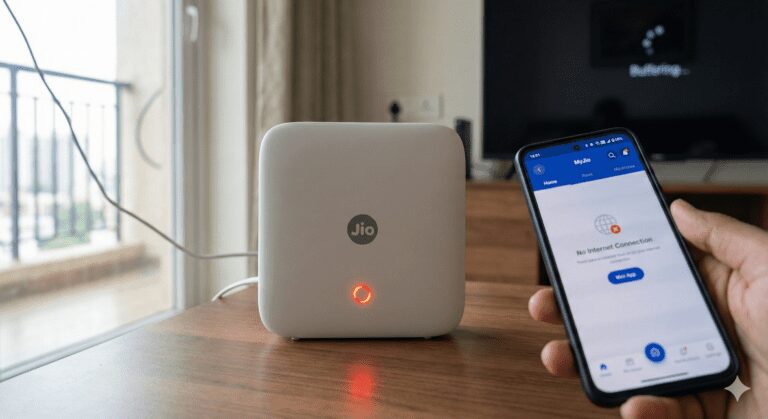
You look at your TP-Link Archer (or C6/A6) router. The Power light is Green, the WiFi light is Green, but the little “Globe” (Internet) icon is glowing Solid Orange.
What does Orange mean?
It means the router is plugged in correctly, but the ISP (Internet Provider) is rejecting the connection.
Most sites tell you to “Reboot.” That rarely works. The real problem is usually a MAC Address Conflict or a Dynamic IP Error.
Here is the master guide to turning that Orange light Green in 3 minutes.
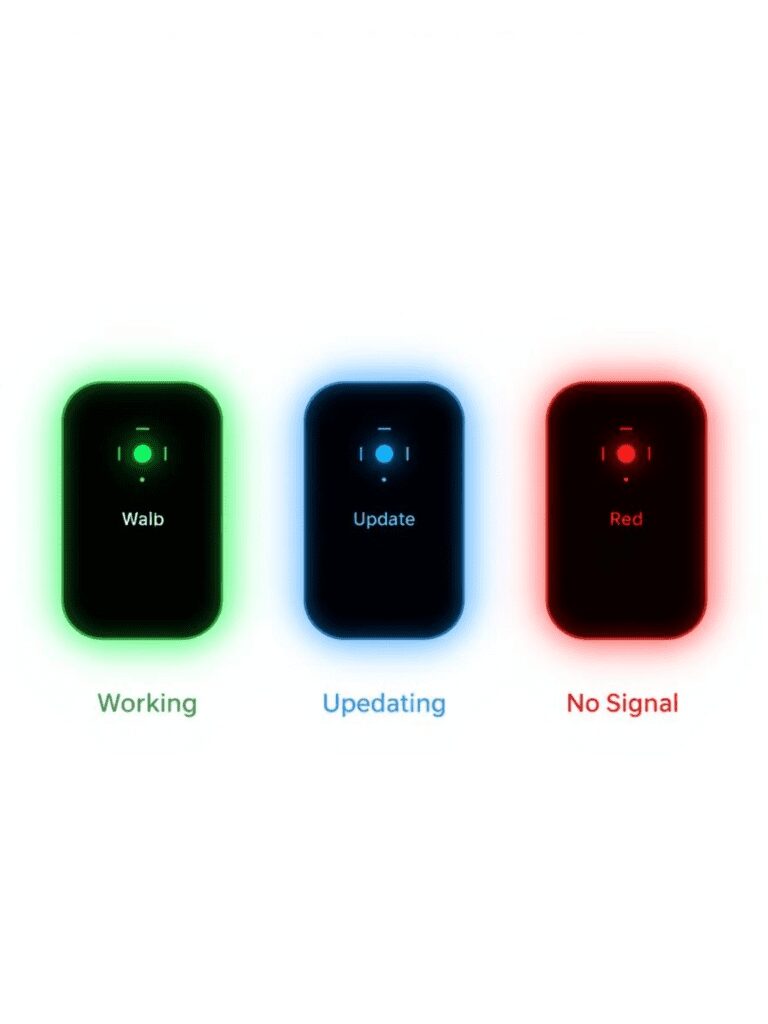
TP-Link Internet Light Codes (Cheat Sheet)
Check the “Globe” icon on your router.
| LED Color | Status | Meaning | The Fix |
| 🟢 Green | Online | Internet is working perfectly. | None. |
| 🟠 Orange (Solid) | Connected (No IP) | Cable is plugged in, but ISP is not sending data. | Needs “MAC Clone” (See Fix 1). |
| 🔴 Red | Disconnected | The Ethernet cable is unplugged or broken. | Check the WAN cable (Blue Port). |
| ⚫ Off | Power Error | The router is off or the LED is disabled in settings. | Check Power Adapter. |
Fix 1: The “MAC Clone” (The Secret Fix)
This is the #1 reason for the Orange Light, especially if you have a Cable Modem (Spectranet, ACT, Xfinity, Spectrum).
Your ISP “remembers” your old computer or old router. It refuses to talk to the new TP-Link router. You must trick it.
-
Login: Connect to WiFi. Open a browser and type
192.168.0.1ortplinkwifi.net.-
Default Password: Usually
admin(or check the sticker on the back).
-
-
Go to Settings: Click Advanced > Network > Internet.
-
Find MAC Clone: Scroll down to the “MAC Clone” section.
-
Select: Choose “Clone Current Device MAC” (Select this while using your Laptop/PC).
-
Save: Click Save.
-
Reboot: Restart the router. The ISP will now think your router is your laptop and give it internet. The light should turn Green.
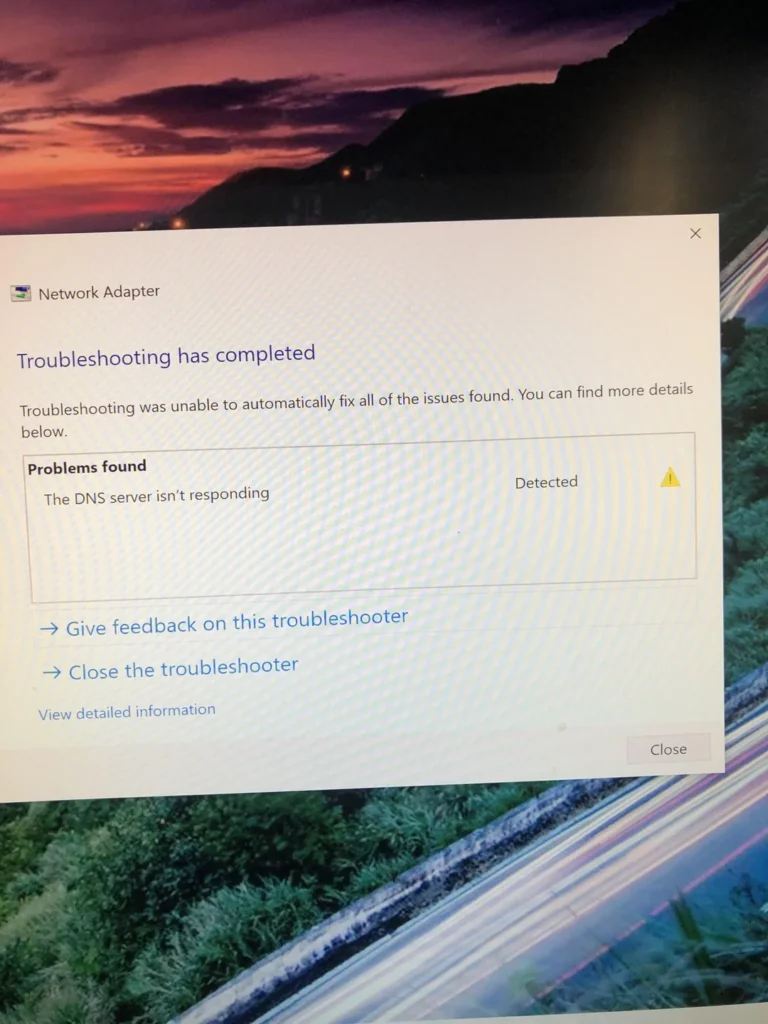
Fix 2: Change DNS Servers (The “Hanging” Fix)
If the MAC Clone didn’t work, your ISP’s DNS server might be down.
-
Login to
192.168.0.1. -
Go to Advanced > Network > Internet.
-
Click “Advanced Settings”.
-
DNS Address: Change “Get Dynamically” to “Use the Following DNS”.
-
Primary DNS:
8.8.8.8(Google) -
Secondary DNS:
1.1.1.1(Cloudflare)
-
-
Save & Reboot.
Fix 3: The “Modem Power Cycle” (Order Matters)
You probably restarted the router. But did you restart the Modem (The ONU box from your ISP)?
You must do it in this exact order:
-
Turn OFF both the Router (TP-Link) and the Modem (ISP Box).
-
Wait 2 Minutes.
-
Turn ON the Modem first. Wait 2 minutes until all its lights are stable.
-
Turn ON the TP-Link Router.
-
Why? The router needs to “hear” the modem greeting it. If you turn them on together, they miss the handshake.
When to Buy a New Cable?
If the light is RED (not Orange), your cable is broken.
-
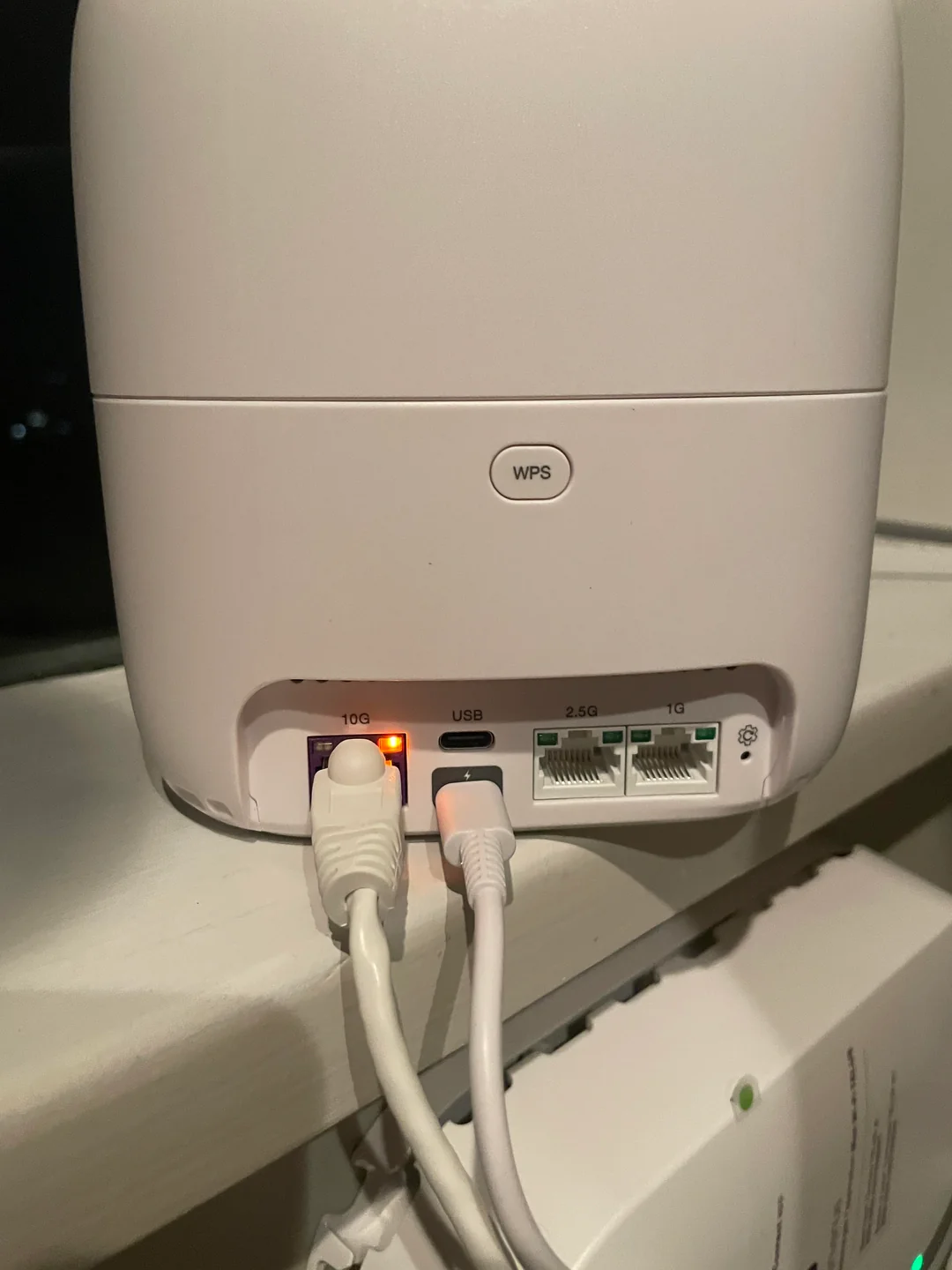
Check the WAN Port: Look at the Blue port on the back. Is the clip on the cable broken?
-
The Fix: Buy a Cat6 Ethernet Patch Cable (Amazon Basics). Do not use old Cat5 cables; they slow down your speed.
Our Analysis / Expert Opinion
At TechReal Repair, the “Solid Orange Light” on TP-Link routers is the #1 complaint we receive during new internet setups.
The Real Issue: Many users assume their router is broken. It isn’t. In our experience testing hundreds of connections, this is almost always a “MAC Binding” issue. Your Internet Service Provider (ISP) locks your connection to the specific hardware ID (MAC Address) of your old device. When you plug in a new TP-Link router, the ISP blocks it because it doesn’t recognize the new ID.
Our Professional Advice: Don’t waste time resetting the router 10 times.
-
The “MAC Clone” (Fix 1) is the only permanent solution. It tricks the ISP into thinking you are still using your old computer or router.
-
Pro Tip: If you use a fiber connection (like JioFiber or Airtel Xstream), ensure the cable is clicked firmly into the WAN Port (Blue) and not a LAN Port (Yellow), as this simple mistake causes 20% of the orange light errors we see.