Is Your Smartphone Secure? A Complete Guide to Mobile Security in 2026
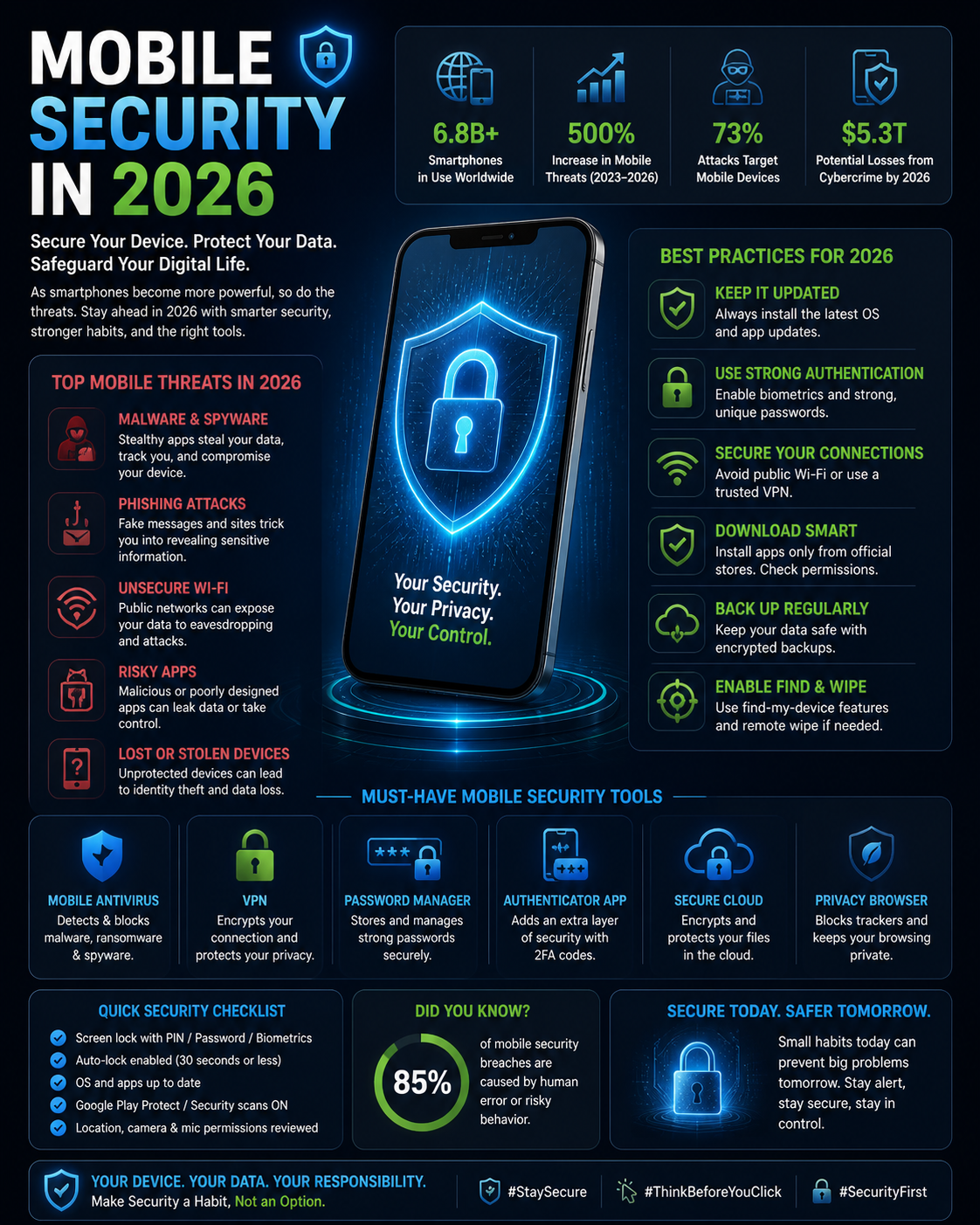
Your smartphone is the most sensitive device you own. It contains your banking apps, your emails, your photographs, your messages, your location history, your contacts, and access to virtually every online account you use. It is also the device most people apply the least security thought to — relying on default settings configured for convenience rather than protection, using the same PIN for years, and installing applications without considering what access they are requesting.
This guide addresses smartphone security comprehensively — covering the specific threats targeting mobile devices in 2026, the settings that matter most, the applications worth installing, and the habits that determine whether your device is actually secure or just feels that way.
Why Smartphone Security Is Different From Computer Security
Smartphones are always on, always connected, and almost always with you. This creates a threat model that differs meaningfully from desktop or laptop security in several ways.
Physical access is a realistic threat for smartphones in a way it rarely is for home computers. A phone left unattended, lost, or stolen is immediately at risk — the security of everything on it depends on the lock screen and the strength of device encryption. Contactless attacks — over Wi-Fi, Bluetooth, or NFC — are also more relevant for a device you carry into public spaces than for computers that stay home.
The application ecosystem creates a unique attack surface. Smartphones run dozens of apps, many of which request access to sensitive device capabilities — camera, microphone, location, contacts, storage — as a condition of use. The aggregate data access granted to smartphone applications is extraordinary, and a single malicious or compromised app can harvest data from all of it.
Mobile operating systems receive updates less predictably than desktop operating systems, and users update less reliably. A smartphone running a two-year-old OS version with unpatched vulnerabilities is a meaningfully weaker security posture than a current-version device.
The Threat Landscape for Smartphones in 2026
Malicious Applications: The App Store Is Not a Guarantee
Both the Google Play Store and Apple App Store have significantly improved their malware screening processes, but neither provides a complete guarantee. Apps with malicious behaviour have been found in both stores — sometimes after years of operation — and the problem is more pronounced for Android, where sideloading applications from outside the Play Store is straightforward.
Beyond outright malware, the more common threat is applications with legitimate functionality that request excessive permissions and monetise that access through data collection and sale. An app that requests microphone access to provide voice search functionality but records ambient audio continuously for advertising profiling is not malicious in the traditional sense but poses a real privacy and security risk.
Smishing: SMS-Based Phishing
Smishing (SMS phishing) is increasingly sophisticated and increasingly common. Messages purporting to be from delivery companies, banks, tax authorities, or government agencies direct users to convincing fake websites that harvest credentials or payment details. The combination of a familiar sender context (a parcel delivery you are expecting), a mobile-optimised phishing page that loads quickly and looks legitimate, and the natural tendency to act immediately on mobile creates a highly effective attack vector.
The visual context of a mobile screen also makes URL inspection more difficult — the limited visible URL in a mobile browser makes it harder to identify that a URL is subtly wrong (paypa1.com instead of paypal.com, for example).
SIM Swapping and Number Hijacking
SIM swapping — convincing a mobile carrier to transfer your phone number to an attacker-controlled SIM — is a targeted attack that compromises SMS-based two-factor authentication across all your accounts simultaneously. Once an attacker controls your phone number, they receive all your SMS messages including authentication codes, and can initiate password resets on email and financial accounts.
The attack requires some personal information about you (often available from data breaches) and a social engineering conversation with a carrier representative. Some carriers are more susceptible than others — those with less rigorous identity verification procedures are more frequently exploited.
Stalkerware and Monitoring Apps
Stalkerware — applications designed to covertly monitor device activity, location, messages, and calls — is installed physically on a target device, typically by someone with direct access. It operates silently in the background, hiding from app lists and transmitting data to whoever installed it.
Detection requires specifically looking for it. Battery drain, unexpected data usage, device slowness that is not explained by normal usage, and unfamiliar processes in the device settings are indicators. Security tools like Malwarebytes for Android and Certo for iOS can detect common stalkerware applications.
The Settings That Determine Your Smartphone Security
Screen Lock: Your First Physical Defence
A weak screen lock — no lock, a simple 4-digit PIN, or a pattern — provides minimal protection against physical access. A 6-digit or longer numeric PIN is meaningfully stronger. An alphanumeric password is strongest. Biometric authentication (fingerprint, face recognition) provides strong convenience-security balance as long as a strong PIN or password is set as the fallback.
For Android devices, ensure that “Smart Lock” features — which disable the lock screen in trusted locations or when connected to trusted devices — are understood and consciously configured. Leaving your home classified as a “trusted location” means your phone is unlocked whenever it is at home, including if someone steals it while you are there.
For iPhones, Face ID and Touch ID are strong biometric options. Ensure the SOS and Medical ID features are configured so that emergency contact and health information is accessible without unlocking, which serves genuine safety purposes without compromising security.
Application Permissions: Audit What You’ve Granted
Both iOS and Android provide settings menus showing which applications have been granted which permissions. For Android: Settings → Privacy → Permission Manager. For iOS: Settings → Privacy & Security.
Review these systematically. Camera access for applications that have no photography function. Location access set to “always” for applications that only need it when actively in use. Microphone access for applications that are not voice or audio tools. Contacts access for applications that have no need for your address book. Any permission that is not clearly necessary for the application’s stated function should be revoked.
Android 11+ and iOS 14+ introduced approximate location sharing (sharing a rough location rather than precise GPS coordinates) for applications that do not need precision, and iOS 14+ prompts when an app accesses clipboard content — use these features.
Automatic Updates: Keeping the Attack Surface Closed
Enable automatic system updates and automatic app updates. Most successful attacks on mobile devices exploit known vulnerabilities — vulnerabilities for which patches already exist at the time of the attack. A device running current software closes the majority of known exploit paths.
For Android devices, the update situation is more complex than for iPhones because updates are distributed through a chain of manufacturers and carriers before reaching devices. Many Android devices stop receiving security updates after 2–3 years. When your device reaches end-of-support for security updates, it is a signal to consider hardware replacement — not because the device stops working but because the security posture of an unpatched Android device degrades meaningfully over time.
Apple provides iOS updates for iPhone models significantly longer — typically 5–6 years — giving iPhone users a longer period of confident security support.
App Installation: Limiting Your Attack Surface
Only install applications you actively use and need. Every installed application is a potential attack vector — either through its own vulnerabilities or through the permissions it holds. Periodically reviewing your installed applications and removing those you no longer use reduces this attack surface.
On Android, only install applications from the Google Play Store unless you have a specific, well-understood reason to sideload. Sideloaded APKs from unofficial sources represent one of the highest malware infection vectors for Android users.
On iOS, Apple’s App Store review process provides stronger filtering than Android, and sideloading is significantly more restricted by default. This contributes to iOS’s generally lower malware infection rate compared to Android.
Applications Worth Installing for Mobile Security
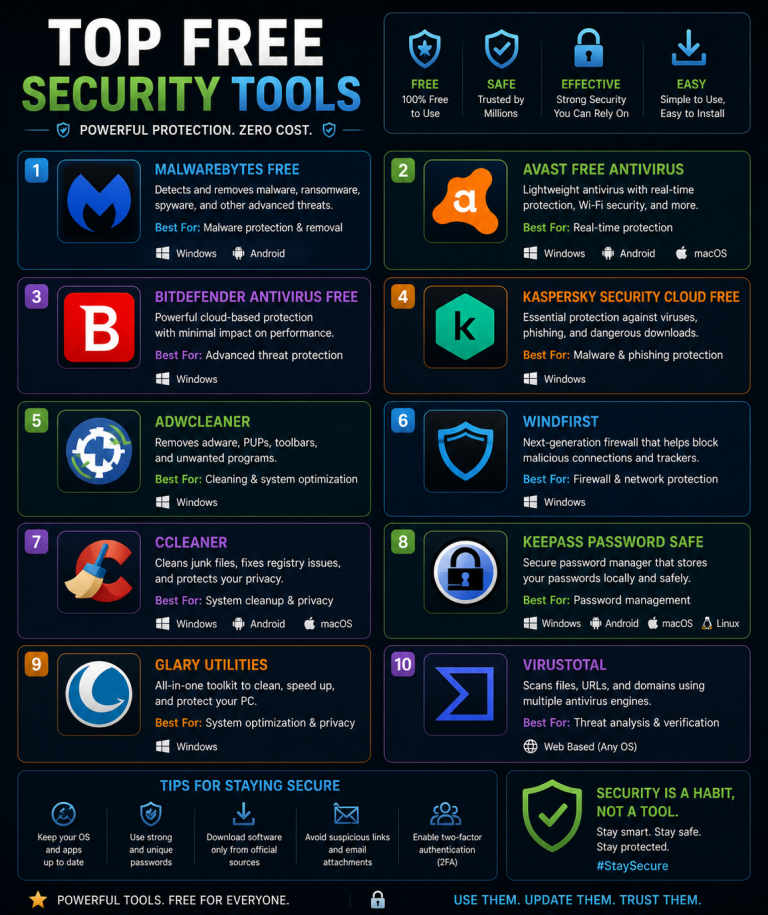
Bitwarden (Android/iOS, free) — password manager with mobile apps that integrate with system autofill, making credential management on mobile as convenient as on desktop without compromising security.
Aegis Authenticator (Android, free) / Raivo OTP (iOS, free) — TOTP authentication apps with encrypted backup. Essential if you use time-based two-factor authentication, which is far more secure than SMS codes.
Signal (Android/iOS, free) — end-to-end encrypted messaging and calls. Use for sensitive personal communications, especially financial discussions, personal documents, and anything you would not want stored on a server.
ProtonVPN (Android/iOS, free tier available) — VPN for use on public Wi-Fi networks. Enable when connecting to any network you do not control.
Malwarebytes for Mobile (Android, free scanning tier) — periodic security scanning for malware and stalkerware detection.
Public Wi-Fi: The Practical Risk Assessment
Not all public Wi-Fi use is equally risky. The threat on public networks is primarily passive interception of unencrypted traffic and man-in-the-middle attacks on encrypted connections. Practical risk depends on the sensitivity of what you are doing.
For encrypted traffic to HTTPS sites (which is now the majority of web traffic), the risk of passive interception is low — the content is encrypted even without a VPN. The residual risks are DNS query exposure (what domains you are looking up, visible even when HTTPS protects the content), and the possibility that an attacker is controlling the network and presenting fake certificates for specific domains.
For activities involving login credentials, financial transactions, or sensitive data on a network you do not control, a VPN provides meaningful additional protection. For casual browsing of public HTTPS content, the risk is lower — though VPN use on public networks remains the safer default.
The highest-risk scenario is joining a network whose legitimacy you cannot verify — a Wi-Fi network named after a café you are in, but operated by an attacker rather than the café. Verifying the correct network name with staff before connecting is a simple practice that eliminates this specific risk.
What to Do If Your Phone Is Lost or Stolen
Time is critical. A stolen phone in the hands of someone motivated to extract data creates urgent risks across all connected accounts.
Remotely lock or wipe the device immediately using Find My iPhone (iOS) or Find My Device (Google) — both accessible from any browser when logged into your Apple ID or Google account respectively. If the device has sensitive data and you cannot recover it quickly, remote wipe removes that data from the device (subject to the device being online to receive the command).
Change passwords for your email accounts first — email is the master key to other account recovery. Then change passwords for financial applications and any other sensitive service the phone was logged into.
Contact your mobile carrier to suspend the SIM — this prevents the phone from being used for calls and data, and more importantly prevents SMS-based two-factor codes from being delivered to whoever has the device.
Report the theft to police if relevant, and to your carrier to flag the device as stolen on the IMEI database, which prevents it from being activated on another carrier’s network.
This article is for informational and educational purposes. Specific security settings and features vary by device model and operating system version. Consult your device documentation for model-specific guidance.